> For the complete documentation index, see [llms.txt](https://docs.yudash.com/llms.txt). Markdown versions of documentation pages are available by appending `.md` to page URLs; this page is available as [Markdown](https://docs.yudash.com/pf/si/weather.md).

# Weather

The **Weather** feature supports traditional meteorological sensors that provide simple **pulse** or **analog** signals.

A YuDash data logger can directly measure:

* **Wind Speed** from a pulse-generating anemometer
* **Wind Direction** from a potentiometer-based wind vane
* **Rainfall** from a tipping-bucket rain gauge

These measurements are handled differently inside the data logger.

**Wind speed** is calculated over a configurable measurement window. Pulses are counted during the selected sample duration and converted into a wind-speed value using the configured calibration factor.

**Rainfall**, on the other hand, is accumulated continuously in the background. Each tipping-bucket pulse represents a known amount of rainfall and is added to the relevant rainfall counters.

Wind direction is typically acquired as an analog voltage from the wind-vane potentiometer and converted to **0–359°** using analog measurement and data scaling.

{% hint style="info" %}
**Sensor calibration is application-specific.** The user must configure the appropriate conversion factors, pulse resolution, debounce and related measurement settings according to the connected sensor manufacturer's specifications. Incorrect settings can result in inaccurate measurements.
{% endhint %}

Compact weather stations with internal electronics may provide wind and rainfall parameters directly over **Modbus, SDI-12 or serial/ASCII interfaces**. Those sensors are handled through the corresponding digital sensor interface rather than through the direct Weather measurements described here.

## Wind Speed and Direction <a href="#wind" id="wind"></a>

**Wind speed** is measured from pulses generated as the cups rotate. The YuDash data logger counts these pulses over a configured sample window and converts the measured pulse rate into wind speed using the configured sensor factor. The resulting value can then be represented in the required engineering units, such as **m/s, km/h, mph or knots**, depending on the application.

**Wind direction** is usually measured using a potentiometer connected to the wind vane. The changing potentiometer position produces an analog voltage, which is measured by the YuDash data logger and scaled into the required angular representation. A typical application may use **degrees (0–359°)**, while other angular units such as **radians** may also be used where required.

```mermaid
flowchart LR
    A["Wind Speed Sensor<br/>Pulse Output"] --> B["YuDash Data Logger<br/>Pulse Counting"]
    B --> C["Wind Speed"]

    D["Wind Direction Sensor<br/>Potentiometer Output"] --> E["YuDash Data Logger<br/>Analog Input"]
    E --> F["Data Scaling<br/>0–359°"]
    F --> G["Wind Direction"]
```

{% hint style="info" %}
**Wind measurement accuracy depends on the sensor configuration.** The correct speed factor, sample window, debounce and direction scaling must be set according to the connected anemometer specifications and the required output units.
{% endhint %}

### Configure Wind Speed & Direction

The following example explains the Weather configuration using the **Davis 6410 anemometer**, which provides both wind-speed pulse output and potentiometer-based wind direction.

The same **configuration workflow** can be used with other traditional anemometers. Sensor-specific wiring, pulse factors, debounce values and direction scaling must be set according to the connected sensor. Detailed sensor wiring is covered separately under **Sensor Integrations**.

> If the installation uses a **wind-speed-only sensor**, the Wind Direction configuration can be skipped.

For this example:

* **Wind Speed** is measured through the Weather pulse input.
* **Wind Direction** is measured through an analog input and converted to the required angular units using Data Scaling.

The following steps show the complete configuration.

Our primary worked example is the **Davis anemometer**, which is widely used in weather and hydrometeorological installations.

{% stepper %}
{% step %}

#### Connect the Davis 6410 to FELYX

For this example:

* **DI1** is used for wind-speed pulse counting.
* **C5** is used for the 0–5 V wind-direction signal.
* **V5B** provides the potentiometer excitation supply.
* **GND** is common to the sensor.

> Wind speed and wind direction are independent measurements even though both are carried through the same Davis RJ11 cable.

<figure><img src="https://1858257737-files.gitbook.io/~/files/v0/b/gitbook-x-prod.appspot.com/o/spaces%2FToww5EM1cml3ouN6fvnJ%2Fuploads%2FO1JL1MQjuYTfIFREAG8p%2FFELYX_SensorIntegration%20(2).png?alt=media&amp;token=18188bcc-64b3-4de0-a077-70e8e741ce1f" alt=""><figcaption></figcaption></figure>

{% endstep %}

{% step %}

#### Enable Weather Measurement

From **Device Settings**, enable the **Weather** feature. Also keep **Analog Inputs** and **Data Scaling** enabled, since wind direction is handled through the analog channel and then converted to degrees.

<figure><img src="https://1858257737-files.gitbook.io/~/files/v0/b/gitbook-x-prod.appspot.com/o/spaces%2FToww5EM1cml3ouN6fvnJ%2Fuploads%2FRTSgBdiCmRDILyQHg8S5%2F02_enable_weather.png?alt=media&amp;token=3a389194-5276-403b-a1db-02646d81a17b" alt=""><figcaption></figcaption></figure>

After applying the device configuration, open:

**Sensor Settings → Weather**

<figure><img src="https://1858257737-files.gitbook.io/~/files/v0/b/gitbook-x-prod.appspot.com/o/spaces%2FToww5EM1cml3ouN6fvnJ%2Fuploads%2F4PGL3qPu3wvyj3Pb23yt%2F03_enable_weather_wizard.png?alt=media&amp;token=4b1b7b46-7345-4c84-bbc9-f16e10d2da33" alt=""><figcaption></figcaption></figure>
{% endstep %}

{% step %}

#### Configure Wind Speed

The Davis 6410 wind-speed output is connected to **DI2**. FELYX counts the incoming pulses and converts them into a wind-speed value inside the **Weather** block.

Open **Weather → Wind Speed** and enable **Wind Speed**.

<figure><img src="https://1858257737-files.gitbook.io/~/files/v0/b/gitbook-x-prod.appspot.com/o/spaces%2FToww5EM1cml3ouN6fvnJ%2Fuploads%2FTJJpFXaMcoXGm7Lx5cOY%2F04_wind_speed_settings.png?alt=media&amp;token=2c01e114-36e8-484b-9d1d-1065cab4b2f3" alt=""><figcaption></figcaption></figure>

For this example:

<table><thead><tr><th width="186">Setting</th><th width="126">Value</th><th>Purpose</th></tr></thead><tbody><tr><td><strong>Cloud Variable Name</strong></td><td><code>wind_speed</code></td><td>Variable generated by FELYX</td></tr><tr><td><strong>Speed Factor</strong></td><td><code>0.1667</code></td><td>Calibration factor used to convert the measured pulse count/frequency into wind speed</td></tr><tr><td><strong>Debounce</strong></td><td><code>5 ms</code></td><td>Rejects very closely spaced transitions or electrical noise</td></tr><tr><td><strong>Sample Window</strong></td><td><code>10000 ms</code></td><td>Measurement window over which the wind-speed pulses are evaluated</td></tr></tbody></table>

> The **Speed Factor** depends on the pulse-to-speed relationship of the connected anemometer. The value shown above is the factor used for this Davis 6410 integration.
> {% endstep %}

{% step %}

#### Configure Wind Direction Input

Wind direction from the Davis 6410 is obtained from the **potentiometer wiper** on the green conductor. With the potentiometer powered from the FELYX 5 V supply, the direction signal is measured as a **0–5 V analog input**.

Open: **Sensor Settings → Analog**

Enable **Channel 5 / C5** and configure it as:

<figure><img src="https://1858257737-files.gitbook.io/~/files/v0/b/gitbook-x-prod.appspot.com/o/spaces%2FToww5EM1cml3ouN6fvnJ%2Fuploads%2FMg3FfgFM6XEid4mfVpfn%2F05_wind_direction_analog_c5.png?alt=media&amp;token=819171d0-ae6e-467f-a360-4ff156d1a98a" alt=""><figcaption></figcaption></figure>

| Setting        | Value           |
| -------------- | --------------- |
| **Topology**   | `C5: 0–5000 mV` |
| **Input Min**  | `0`             |
| **Input Max**  | `5000`          |
| **Output Min** | `0`             |
| **Output Max** | `5000`          |
| **Multiplier** | `1`             |
| **Variable**   | `w_direction`   |

At this stage, FELYX is measuring the raw wind-direction signal in millivolts.

The Davis 6410 uses a **wind vane and potentiometer** for direction sensing; the green wire is the potentiometer wiper and the yellow wire is its supply
{% endstep %}

{% step %}

#### Convert Wind Direction to Degrees

Open: **Data Scale & AXON → Data Scaling**

Add the variable `w_direction` and configure:

| Setting           | Value         |
| ----------------- | ------------- |
| **Variable Name** | `w_direction` |
| **Min In**        | `0`           |
| **Max In**        | `5000`        |
| **Min Out**       | `0`           |
| **Max Out**       | `359`         |

{% endstep %}

{% step %}

#### Step 6 — Verify Wind Data

After saving the configuration, open the **YuDash Local Dashboard** and verify the generated wind variables

<figure><img src="https://1858257737-files.gitbook.io/~/files/v0/b/gitbook-x-prod.appspot.com/o/spaces%2FToww5EM1cml3ouN6fvnJ%2Fuploads%2F1XGY7yA7NrLzJNv9cd9O%2FYuDash%20Real-Time%20Sensor%20Dashboard.png?alt=media&amp;token=9b9e1fa0-4986-4bc0-b31b-3ad19b6fdce4" alt=""><figcaption></figcaption></figure>

In this test, approximately **2.3 V** was applied to the wind-direction input **C5**. The dashboard shows:

* `analog_5` = **2307.07 mV** — raw analog input
* `w_direction` = **165.648°** — scaled wind-direction value
* `wind_speed` — wind-speed value generated from the pulse input

With the configured scaling of **0–5000 mV → 0–359°.**

```
2307 mV / 5000 mV × 359 ≈ 165.6°
```

The dashboard therefore confirms that the analog wind-direction signal is being acquired and converted correctly.

> During commissioning, rotate the wind vane and anemometer to confirm that both `w_direction` and `wind_speed` respond correctly across their operating range.
> {% endstep %}
> {% endstepper %}

## Rain Gauge <a href="#rain" id="rain"></a>

A **tipping-bucket rain gauge** converts rainfall into a sequence of electrical pulses.

Rainwater is collected through the funnel and directed into a small two-sided tipping bucket. As one side fills to a calibrated volume, the bucket tips and empties. A magnet attached to the tipping mechanism passes a **reed switch**, creating one electrical pulse for each tip.

Each pulse therefore represents a known amount of rainfall, defined by the sensor calibration or **mm per tip** value.

#### How FELYX Measures Rainfall

The rain-gauge output is connected to the YuDash data logger as a simple pulse input.

For the example shown here:

* one reed-switch wire is connected to **DI1**
* the second wire is connected to **GND**
* every valid bucket tip produces one pulse
* the data logger continuously counts these pulses in the background
* the pulse count is converted into rainfall using the configured **mm per tip** value

<figure><img src="https://1858257737-files.gitbook.io/~/files/v0/b/gitbook-x-prod.appspot.com/o/spaces%2FToww5EM1cml3ouN6fvnJ%2Fuploads%2FDUuniHvKQ90IQrdN1h9d%2Frainfall_concept.png?alt=media&amp;token=a7340fea-6adf-4c6e-9ab4-6a6333433141" alt=""><figcaption></figcaption></figure>

Unlike wind speed, rainfall is not calculated only during a short sample window. The rain counter remains active continuously so that individual bucket tips are not missed.

A **debounce** setting is used to prevent contact bounce or electrical noise from causing a single physical tip to be counted more than once.

> **Rainfall accuracy depends on correct sensor settings.** The configured `mm per tip`, debounce and pulse-input wiring must match the rain-gauge manufacturer's specification.

### Configure Rain Gauge

1\) The wiring shown below is a **representative example** of connecting the Davis 6464 tipping-bucket rain gauge to a YuDash data logger using the sensor's RJ11 cable.

In standard terminal-input configurations, the rain pulse and ground conductors are connected to the appropriate **DI** and **GND** terminals. YuDash also offers product variants with **direct RJ11 sensor connectors** for simplified Davis installations.

<figure><img src="https://1858257737-files.gitbook.io/~/files/v0/b/gitbook-x-prod.appspot.com/o/spaces%2FToww5EM1cml3ouN6fvnJ%2Fuploads%2FOmypWznoywclH8bl89bQ%2FFELYX_SensorIntegration%20(5).png?alt=media&amp;token=0f3300d6-2f6b-4f8c-bdc8-0ac2aec5ebaf" alt=""><figcaption></figcaption></figure>

2\) Open **Sensor Settings → Weather → Rain Gauge** and enable **Rain Gauge**.

<figure><img src="https://1858257737-files.gitbook.io/~/files/v0/b/gitbook-x-prod.appspot.com/o/spaces%2FToww5EM1cml3ouN6fvnJ%2Fuploads%2F4YhXawTb8xY4haF13kNm%2Fconfiguration_6.png?alt=media&amp;token=34768569-3981-4a83-b61a-3de436ca19a6" alt=""><figcaption></figcaption></figure>

#### 3) Rain Gauge Settings

<table data-header-hidden><thead><tr><th width="144"></th><th width="161"></th><th></th></tr></thead><tbody><tr><td>Setting</td><td>Example</td><td>Description</td></tr><tr><td><strong>Gauge Mode</strong></td><td><code>0 — ISR (no deep sleep)</code></td><td>Standard rain-pulse counting mode. Keep this at <code>0</code> for normal installations. Other modes are intended for experimental/special use.</td></tr><tr><td><strong>mm Per Tip</strong></td><td><code>0.2</code></td><td>Rainfall represented by one valid bucket tip. This value must match the rain-gauge calibration.</td></tr><tr><td><strong>Debounce</strong></td><td><code>50 ms</code></td><td>Rejects additional contact transitions occurring immediately after a valid tip.</td></tr><tr><td><strong>Start of Day</strong></td><td><code>0</code></td><td>Defines when the daily rainfall counter rolls over, in minutes after local <code>00:00</code>.</td></tr><tr><td><strong>Rain Data Directory</strong></td><td><code>/rain_dir</code></td><td>Internal SD-card directory used by the rain-processing system.</td></tr></tbody></table>

> **Do not modify or delete files inside `/rain_dir`.** These files are maintained internally by the YuDash data logger for rainfall calculations and counter continuity.

#### 4) Rainfall Variables

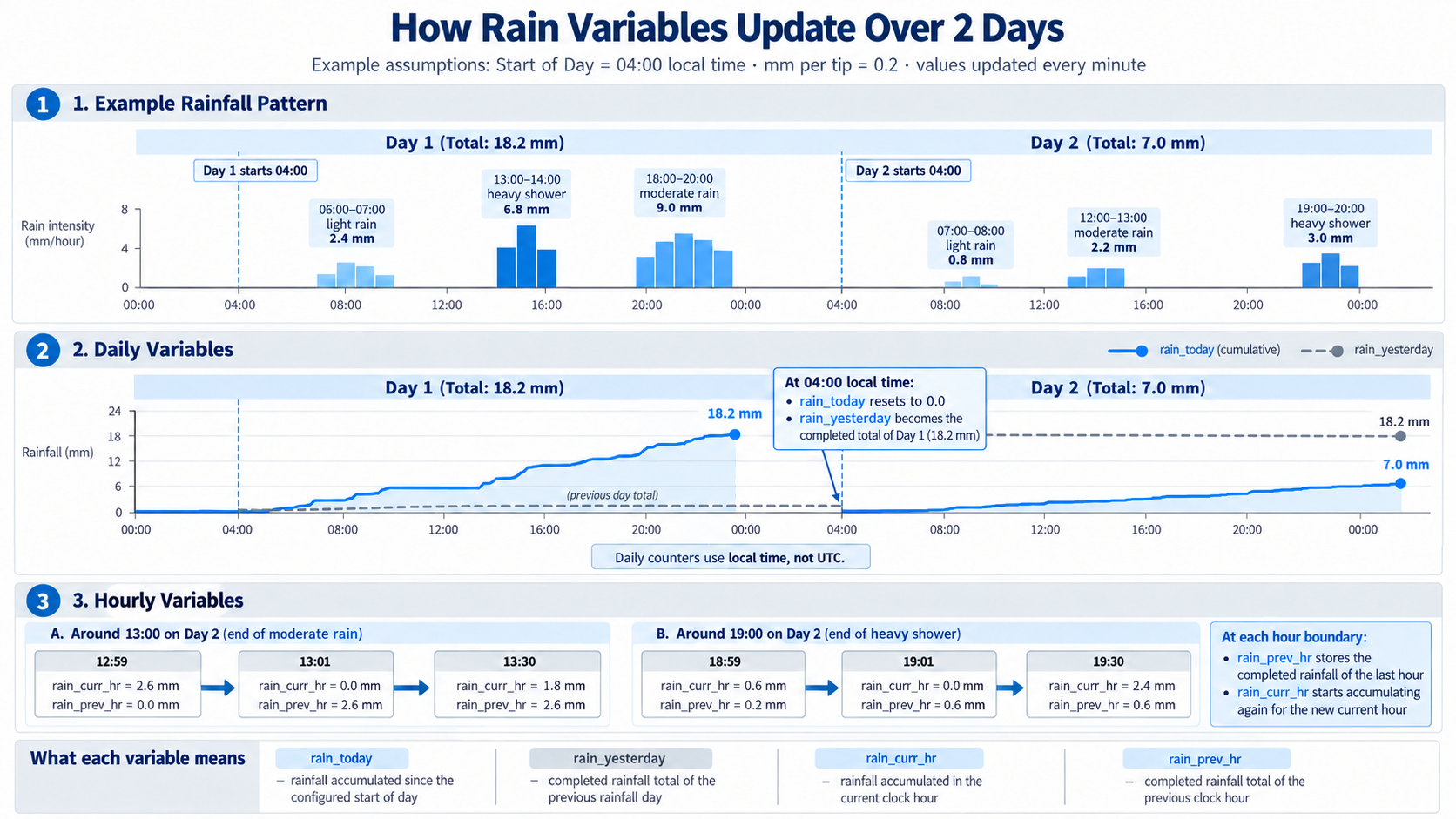
The Weather feature maintains four rainfall variables. These values are refreshed on approximately a **one-minute basis**.

<table><thead><tr><th width="171">Variable</th><th>Meaning</th></tr></thead><tbody><tr><td><code>rain_today</code></td><td>Total rainfall accumulated during the current configured rainfall day</td></tr><tr><td><code>rain_yesterday</code></td><td>Total rainfall accumulated during the previous rainfall day</td></tr><tr><td><code>rain_curr_hr</code></td><td>Rainfall accumulated during the current clock hour</td></tr><tr><td><code>rain_prev_hr</code></td><td>Total rainfall accumulated during the immediately preceding clock hour</td></tr></tbody></table>

The variable names can be changed to suit the destination application.

Current Hour and Previous Hour

`rain_curr_hr` accumulates rainfall during the current local clock hour.

At the hour rollover, the completed value is transferred to `rain_prev_hr`, while `rain_curr_hr` starts again from zero.

#### 5) Start of Day

Rainfall calculations use the **device local time**. By default, the rainfall day changes at **00:00 local time**.

The **Start of Day** setting allows this rollover time to be shifted to match the reporting convention required by the applicable meteorological department or project specification. The value is entered as the number of minutes after midnight.

For example:

```
00:00 → 0
04:00 → 240
06:00 → 360
```

This setting affects **rainfall calculations only**. It does not change the device clock or the timestamp used by other measurements.

#### How Rainfall Variables Update

The example below illustrates how `rain_today`, `rain_yesterday`, `rain_curr_hr`, and `rain_prev_hr` change over time during rainfall.

It also shows how the configured **Start of Day** and hourly rollover affect the accumulated values.

<figure><img src="https://1858257737-files.gitbook.io/~/files/v0/b/gitbook-x-prod.appspot.com/o/spaces%2FToww5EM1cml3ouN6fvnJ%2Fuploads%2FmkTsKL4BpnU6gq08jmJi%2FTwo-Day%20Rainfall%20Variables%20Update%20Chart.png?alt=media&amp;token=5351ca06-ae44-4da5-9582-7ec9c1dcb440" alt=""><figcaption></figcaption></figure>