> For the complete documentation index, see [llms.txt](https://docs.yudash.com/llms.txt). Markdown versions of documentation pages are available by appending `.md` to page URLs; this page is available as [Markdown](https://docs.yudash.com/pf/dm.md).
# Device Monitoring
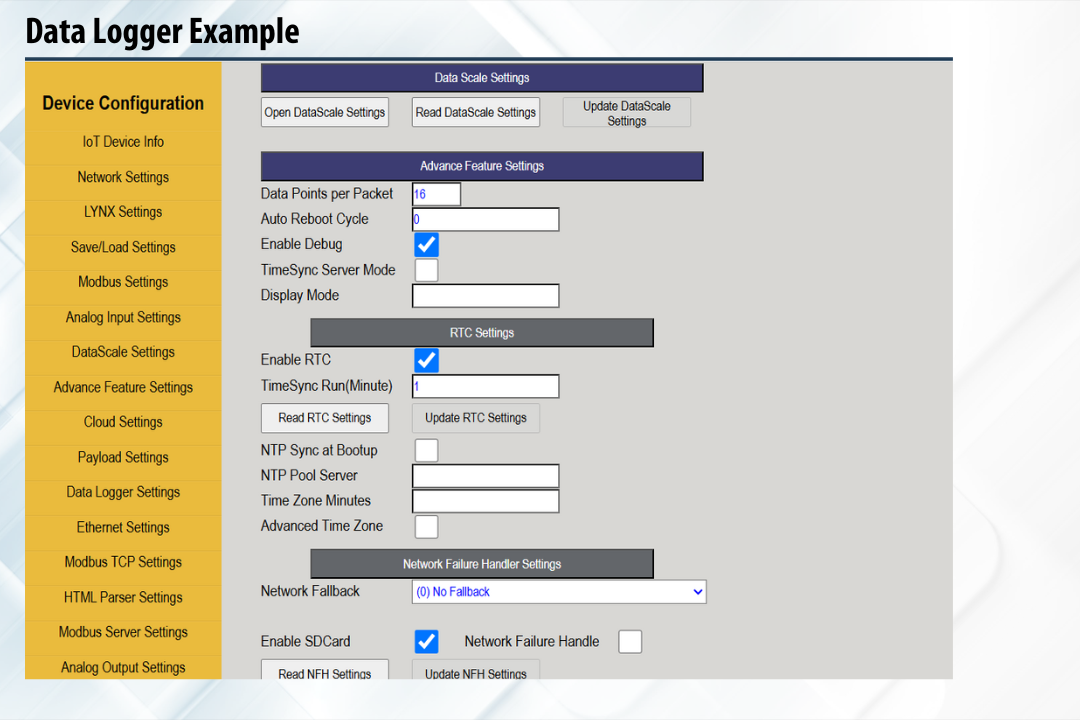
4. SD Card logging requires both the **SD Card** and **RTC (Real-Time Clock)** features to be enabled in the configuration. If either is disabled, the logger will not function. Make sure both checkboxes are selected before oder format — the corresponding default is overridden. Only fields left blank will fall back to default behavior.
### 3. File directory and name
In this section, you configure where and how the data logger files will be stored:
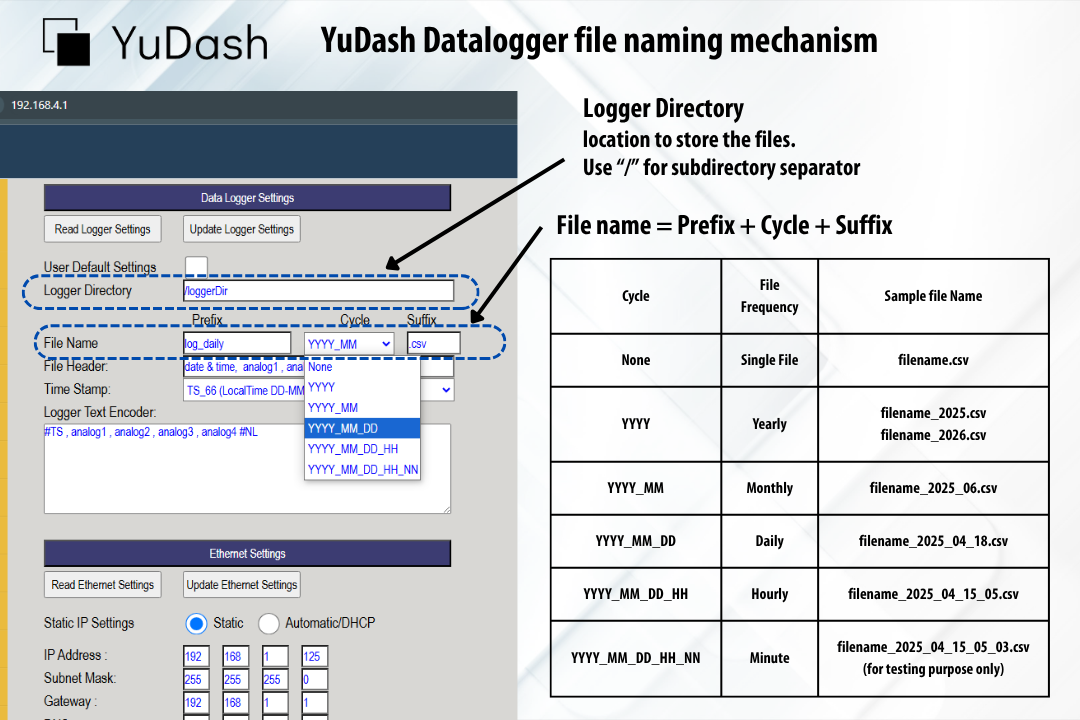
1. **Logger Directory**: Specifies the folder path on the SD card where log files will be created. Points to note:
1. The path must begin with a forward slash `/` (root directory).
2. Use `/` as the folder separator (like in Unix/Linux), **not** the Windows-style backslash `\`.
3. **Do not** add a trailing slash at the end of the path.\
✅ `/logger_dir` ❌ `/logger_dir/` or `\logger_dir\`
4. The directory will be **automatically created** if it does not already exist on the SD card.
2. **File Name**
YuDash provides flexible file naming by allowing a customizable **prefix**, dynamic **timestamp insertion** (based on selected cycle), and optional **suffix**.\
This makes it easy to:
* Align with existing file naming conventions in your systems
* Simplify automated file parsing or importing on downstream software
* Organize logs by project, device, or department
The file name is constructed using a **prefix**, the **cycle-based timestamp**, and a **suffix**. The suffix is typically `.csv`, `.txt`, or any other extension as per your application's needs.
**File Name**: Define a custom file name using a **prefix** and **suffix**. The actual file name is generated dynamically using the selected **File Cycle:**
**file\_name = Prefix + Cycle + Suffix.**
**File Naming Examples for different Cylcles**
* **Prefix**: `log_` **Suffix:** `.csv`
* **File Cycle Options**
| File Cycle | Description | Example File Name |
| ------------------------ | ----------------------------- | -------------------------- |
| **None** | Single file | `log_.csv` |
| **YYYY** | Yearly | `log_2025.csv` |
| **YYYY\_MM** | Monthly | `log_2025_06.csv` |
| **YYYY\_MM\_DD** | Daily | `log_2025_04_18.csv` |
| **YYYY\_MM\_DD\_HH** | Hourly | `log_2025_04_15_05.csv` |
| **YYYY\_MM\_DD\_HH\_NN** | Per minute (for testing only) | `log_2025_04_15_05_03.csv` |
### 4. File content
In this section, you define the **format of each line** in the log file, including optional header text, timestamp placement, and variable encoding using a flexible text template.
1. **Optional File Header**
* A one-time header line is added at the top **only when a new file is created** (e.g., on a new day or month depending on the file cycle).
* Useful for column labels or unit information.
* Can be left blank if not needed.
2. **Timestamp Format Selection**
* Select the **TimeStamp format** from the dropdown. This determines the format that will be used when `#TS` is inserted into the encoder.
* You can choose from UTC or Local time formats such as:
* `YYYY-MM-DD HH:MM:SS`
* `DD-MM-YYYY HH:MM:SS`
* `UNIX_EPOCH`
* `ISO 8601`
* For a full list of available timestamp formats and codes (`TS_50` to `TS_66`), refer to the[ Time Stamp formats](https://docs.yudash.com/pf/pages/zVPbfkPk535M9wb3d1lP#h.t8n8abq6601b_l).
3. **Logger Text Encoder**
* This is a simple, text-based encoder that defines how each line in the log file is written. This is of format TEXT\_FORMAT\_20 of [YuTGT](/pf/ct/payload/yutgt-yudash-text-generator.md#yudash-text-generator-for-payload)
* You can use:
* **Single-character separators** such as `,`, `:`, `|`, , etc.
* **Variable names** (e.g., `bod`, `tss`, `cod`) as defined in earlier configuration flows. These are replaced with their actual values during logging.
* **Special `#` tags** to insert system-defined fields:
* `#TS` → Timestamp (as per the selected format)
* `#NL` → New line (typically added at the end of each encoder string to ensure proper row formatting)
* Other #tags as per YuTGT
* This flexible approach allows you to generate well-structured `.csv` or `.txt` files tailored to any downstream system.
## Example: Logging 4 Analog Channels with YuDash LYNX
This example shows how to configure YuDash LYNX to log data from 4 analog input channels to the SD card using default settings. No Modbus devices or cloud connection is required. You’ll get one `.csv` file per day, which can be opened directly in Excel.
### Step 1: Load Example Configuration File
To get started quickly, you can **load the ready-made lynx configuration json file:**
{% file src="/files/6E8f95YcUHV6ouE78oNM" %}
Simply download above json file and load into YuDash device.
#### Step-by-Step Review of Settings
Now let’s review what’s inside this file — based on screenshots and setting blocks:
***
**✅ 1. Enabled Features**
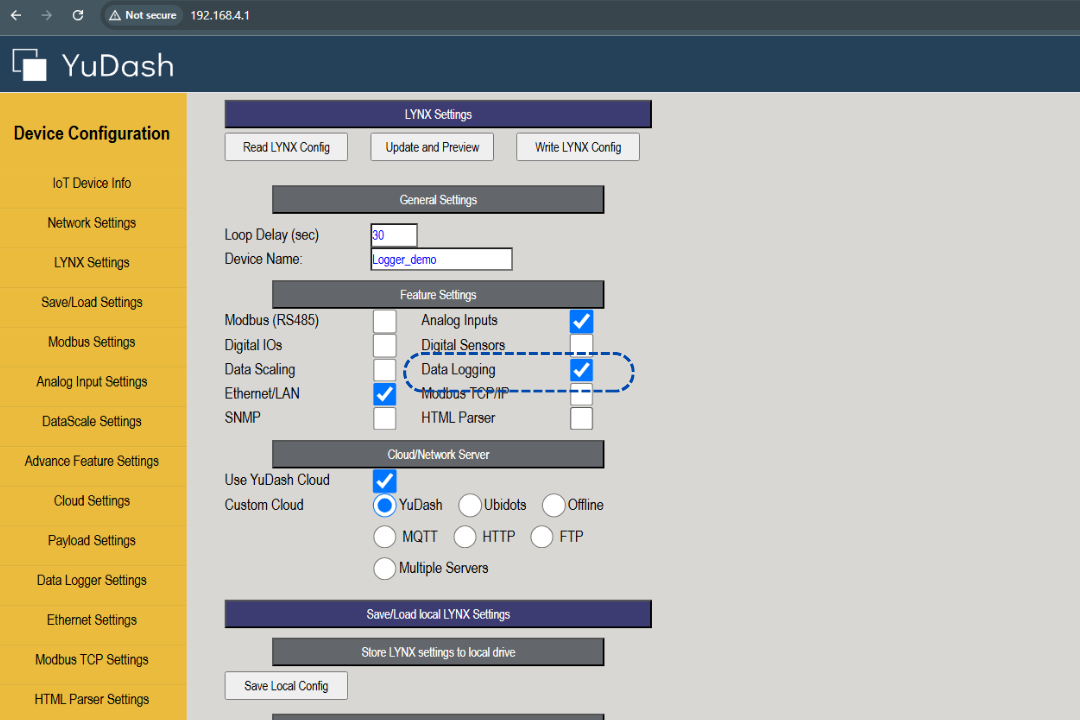
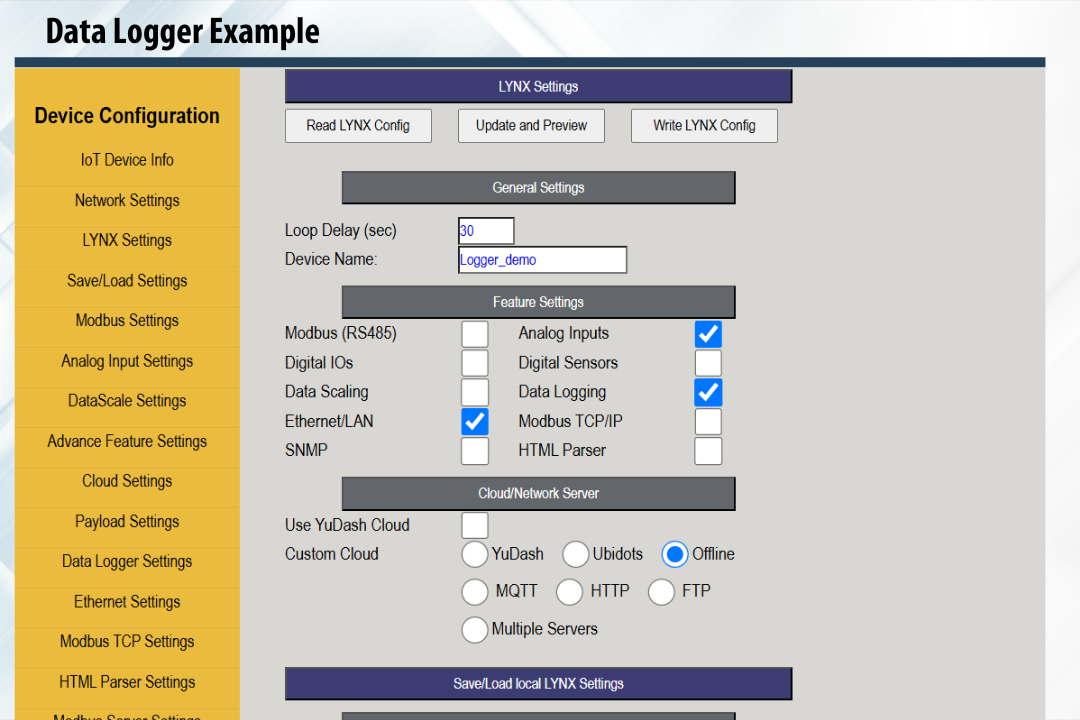
In **LYNX Settings**:
* `Analog Inputs`: ✔️ Enabled
* `Data Logging`: ✔️ Enabled
* `Ethernet/LAN`: ✔️ Enabled (for accessing logs via LAN browser)
* Cloud/Network Server is set to "Offline"
***
**✅ 2. Logging Frequency and RTC Settings**
In **Advance Feature Settings**:
* `TimeSync Run (Minute)`: `1`\
→ This tells the logger to save data every 1 minute
* `Enable RTC`: ✔️ Checked
* `Enable SDCard`: ✔️ Checked
***
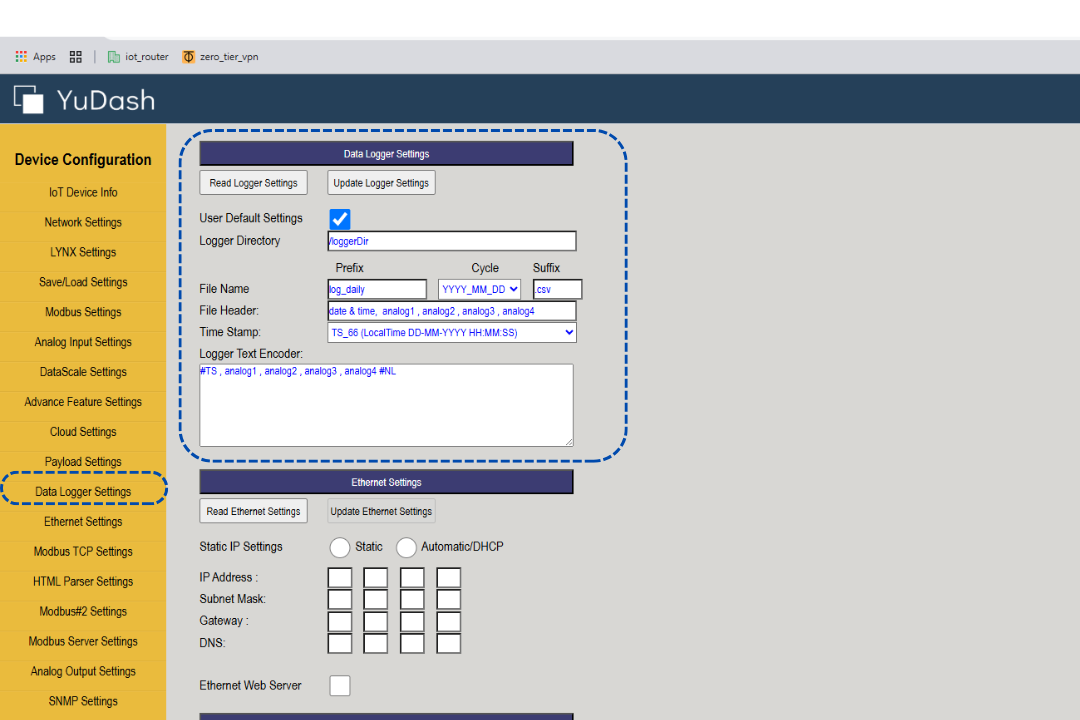
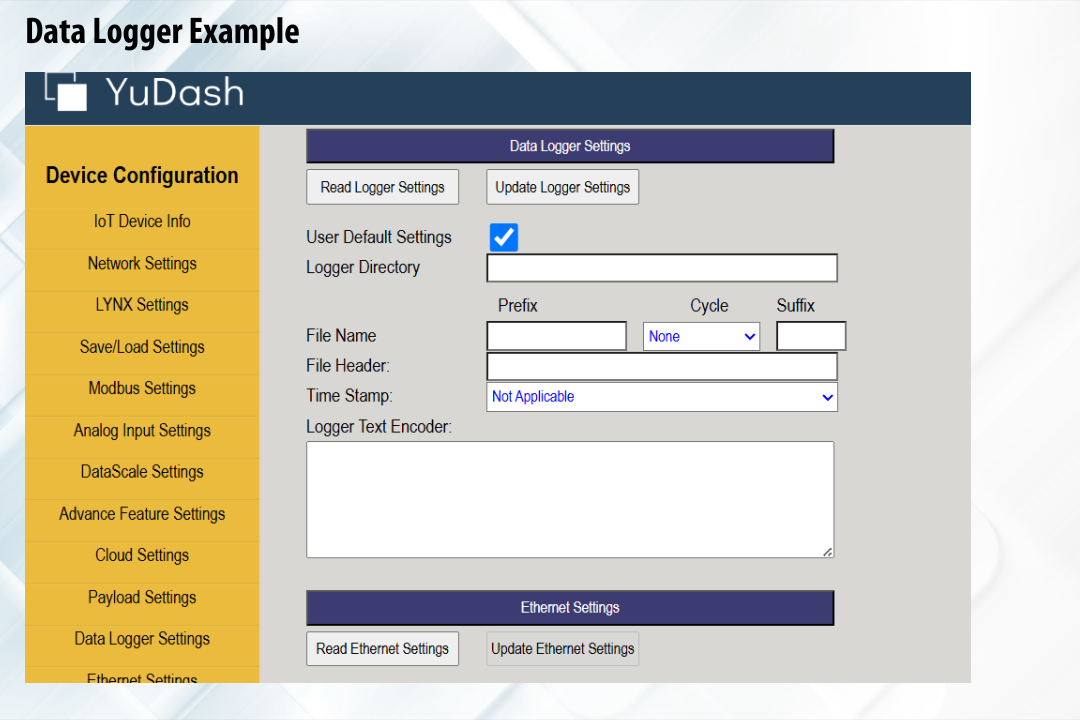
**✅ 3. Logger Settings (Default Mode)**
*(See Screenshot 112)*
In **Data Logger Settings**:
* `Use Default Settings`: ✔️ Enabled
* All other fields: left empty
> In this mode, the logger automatically:
>
> * Logs **all available analog inputs** (e.g., analog1 to analog4)
> * Adds a **timestamp** at the beginning
> * Uses **comma-separated CSV** format
> * Saves one file per day in `/logger_dir`
### Step 2: Run LYNX with uploaded lynx.json
Start by powering up the YuDash LYNX device with a microSD card inserted.
* You **do not need to connect any analog sensors** at this stage.
* LYNX will still log the 4 analog channels with default values (typically zero raw ADC readings).
* Let the device run for a few minutes so it can generate at least 2–3 log entries.
### Step 3: View the File Created on SD Card
After a few minutes of running, a log file will be created automatically on the SD card by the LYNX.
* **Folder Path:** `/logger_dir`
* **File Name Format:**
```
logger_file_YYYY_MM_DD.csv
```
For example: `logger_file_2025_06_12.csv`
* **Sample File Content (this example has analog inputs connected, with 5,10,15,20mA at inputs):**
{% file src="/files/buM6olJrtrb9n23IzB0W" %}
## Retrieval of data logger files in laptop/PC
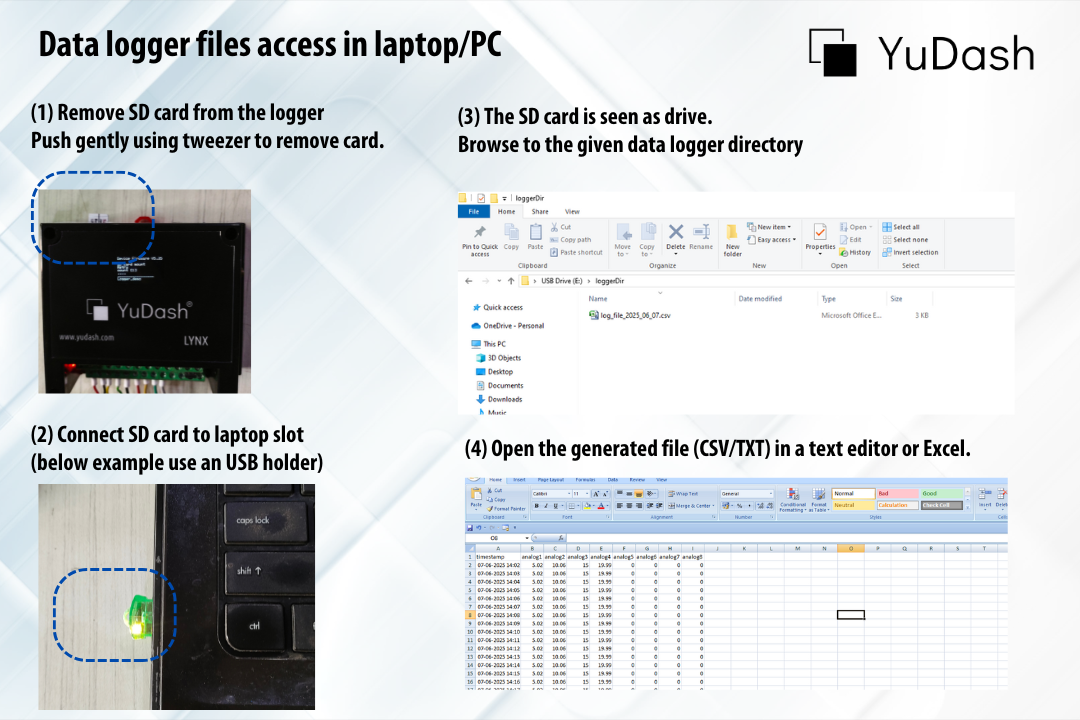
The data files created by the YuDash logger on the SD card can be easily accessed using a laptop or desktop system. Follow the steps below (also illustrated in the image):
1. **Remove the SD Card from the Logger**
* Gently push the SD card using a non-metal tool (e.g., plastic tweezer) to release it from the slot on the YuDash device.
2. **Insert SD Card into Laptop**
* Use the built-in SD card slot (if available), or a USB card reader as shown in the example.
3. **Browse the Logger Directory**
* Once inserted, the SD card appears as a removable drive.
* Navigate to the configured **logger directory** (e.g., `/loggerDir`) to view the generated log files.
4. **Open Files in Excel or a Text Editor**
* The files (typically `.csv` or `.txt`) can be opened in applications like Microsoft Excel, Notepad, or any spreadsheet/data analysis software for review and further processing.
> 📎 Tip: Ensure the logging cycle has completed (e.g., file has closed properly) before removing the SD card for reliable file reads.
SD card file access